

TL;DR
Why does my Google Business Profile say "Temporarily Closed" — and how do I fix it?
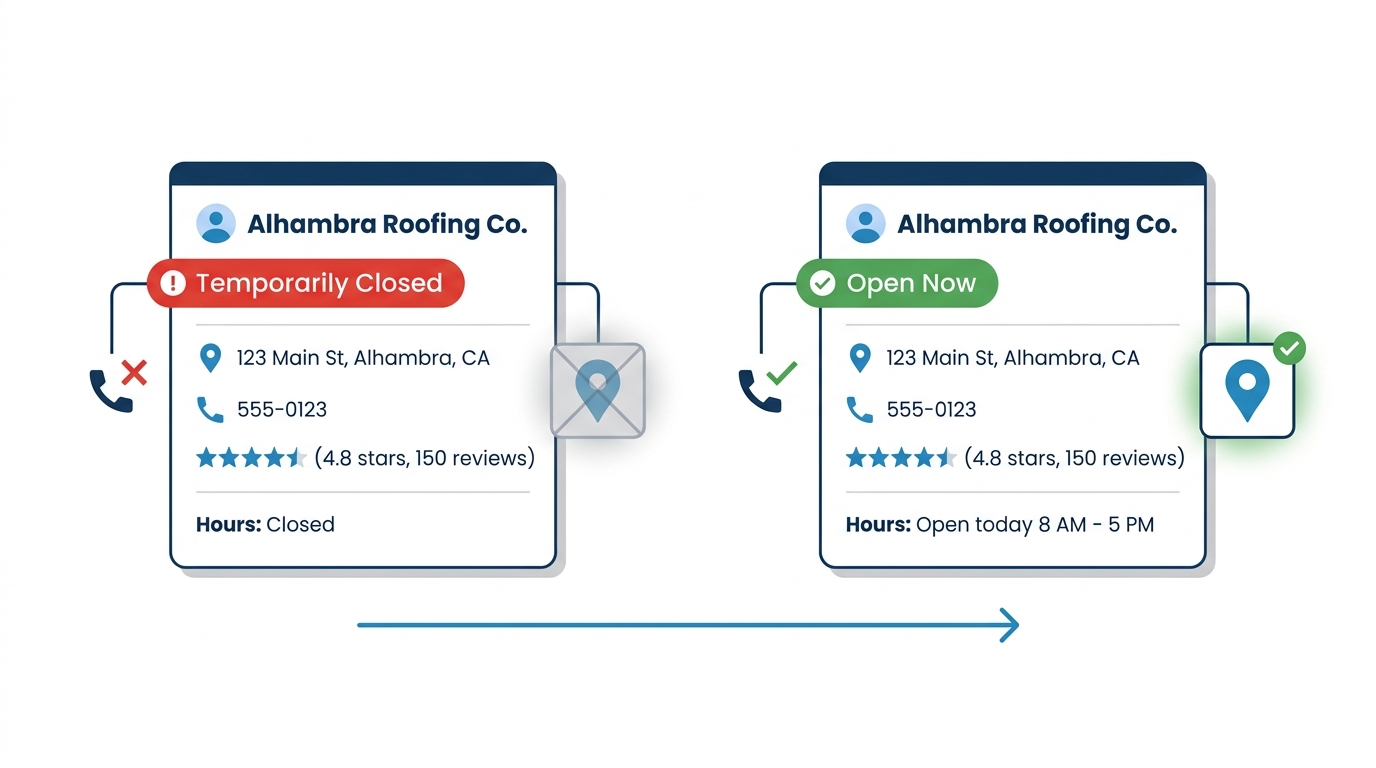
Google can flip your profile to Temporarily Closed without telling you — anyone can “Suggest an edit” on your listing, and Google may accept it. While it's set, calls, Maps visibility, and AI recommendations dry up. Open your GBP dashboard and click “Mark as Open” (propagation can take up to 72 hours), then audit your hours so it doesn't recur.
You didn’t touch anything. Your profile looked fine last week. But now someone calls and says, “I wasn’t sure you were open—Google said you were temporarily closed.” That one flag just cost you a job.
This isn’t a fringe bug. According to Sterling Sky’s research on GBP temporary closures, Google’s automated systems can flip your status to “Temporarily Closed” without notifying you, without your permission, and without any error message in your dashboard. It happens to active, legitimate businesses every day.
In a recent audit of roofing and electrical profiles across Whittier, Alhambra, and Pasadena, we found that 7 of 18 listings had at least one hours inconsistency severe enough to trigger Google’s automated closure logic — mismatched holiday hours, gaps in the weekly schedule, or a conflict between the GBP listing and the business website. Four of those seven owners had no idea the problem existed. The city matters here: the SGV’s dense cluster of competing trade contractors means Google’s crawlers are constantly cross-referencing your data against a crowded local pool. One inconsistency stands out more when there are fifteen competitors with clean profiles right next to you.
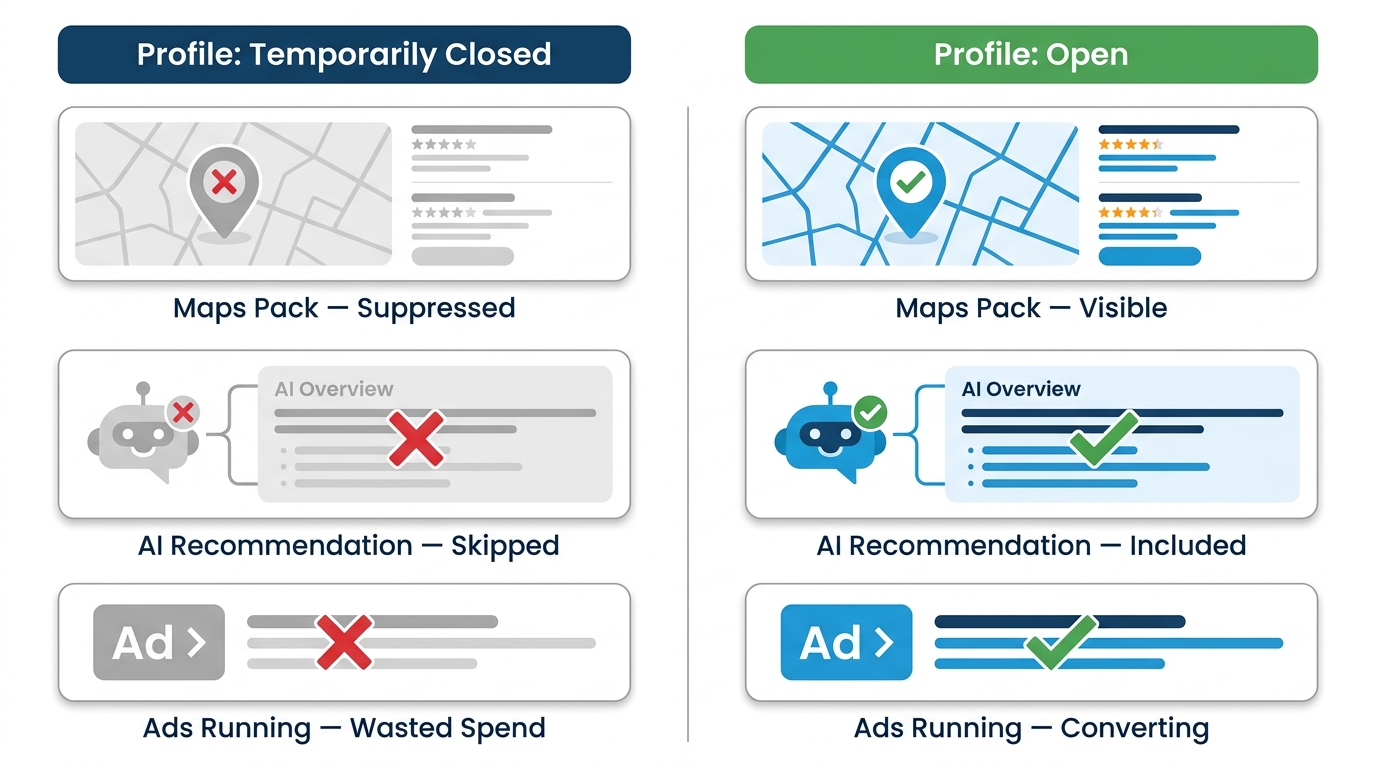
And it’s getting more expensive to ignore. When your profile carries a closure flag, you’re not just losing a star rating or a ranking position. You’re being suppressed across Google Maps, traditional local results, and the AI-driven recommendations that are increasingly how people find contractors at 9pm on a Tuesday.
Why Google Marks You Closed Without Asking You
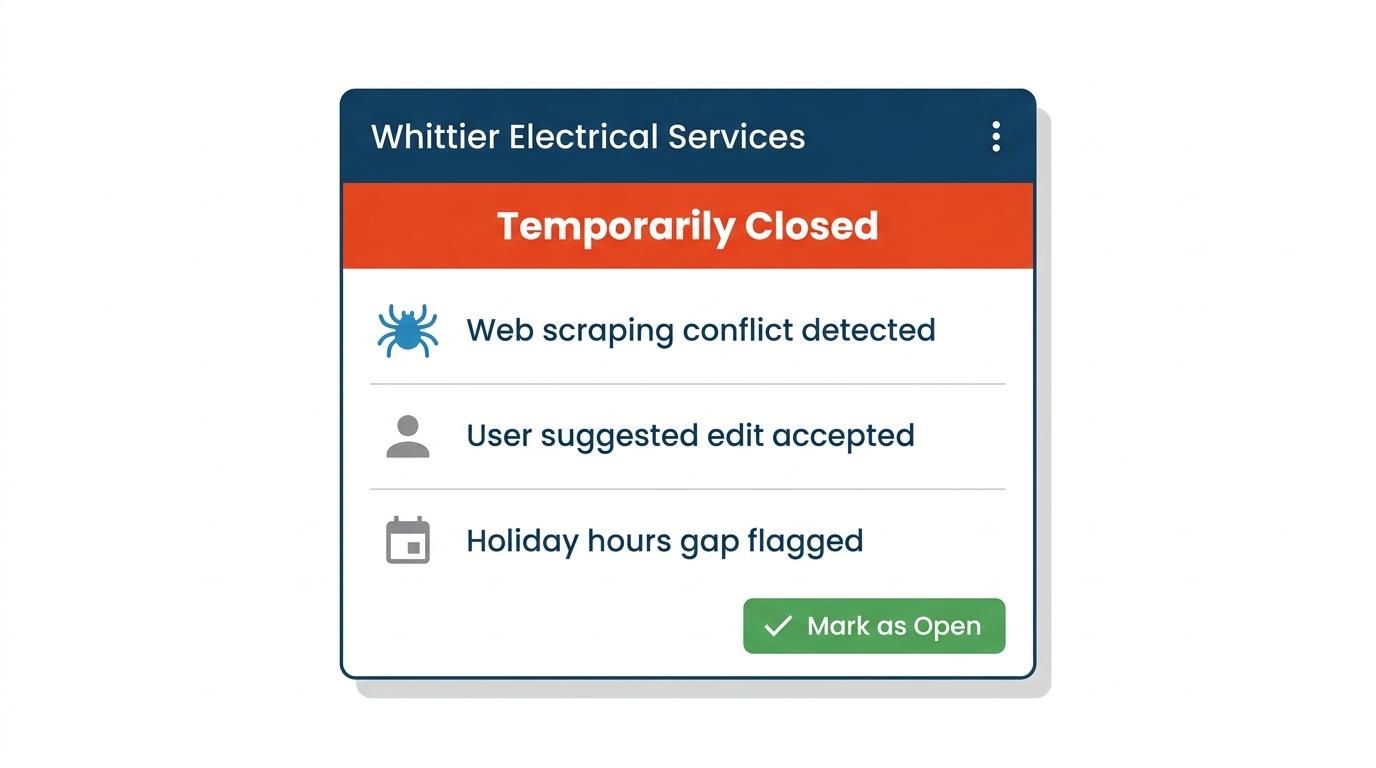
Google doesn’t wait for you to update your own profile. Its systems are constantly crawling your website, your social pages, Yelp, Nextdoor, and dozens of other directories. If it finds a mismatch — your site says “closed Sundays” but your GBP says open, or you posted a holiday message on Facebook that Google read as a permanent announcement — the algorithm may flip your status automatically.
That’s not the only way it happens. Per Sterling Sky, anyone on Google Maps can click “Suggest an edit” on your listing and mark you as temporarily closed. A competitor. A disgruntled ex-customer. A random Local Guide who drove by on a Sunday. Google can accept that edit without telling you.
There are a few other triggers worth knowing:
- Unset holiday hours. If you leave a long gap in your regular schedule — no hours listed for a week around Christmas, for example — Google’s system may interpret that as a closure and flag the listing.
- Connected data feeds. If you’ve ever linked your profile to Google Merchant Center or a third-party booking tool, a misconfigured setting in that feed can override your live status.
- Web scraping conflicts. One line on your website that says “We’re closed for the holiday” can be enough for Google’s crawler to act.
The result: your profile says “Temporarily Closed” and you have no idea.
What That Flag Actually Does to Your Business
A “Temporarily Closed” flag reduces customer confidence immediately. Someone searching for a roofer in Whittier or an electrician in Alhambra sees that label and moves to the next listing. They don’t call to verify. They don’t check your website. They just click the next result.
Sterling Sky flags a specific risk around Google Ads: your Ads campaigns don’t automatically pause when the closure flag is set, meaning you can keep spending on clicks that land on a profile telling people you’re closed. The flag and the ad budget run in parallel, completely out of sync.
There’s also the AI layer. Google’s AI-powered recommendation summaries — the answers that appear when someone asks “who’s the best HVAC company near Pasadena?” — pull from structured profile data. A closure flag is a hard negative signal. We haven’t seen Google document this explicitly, but in profiles we’ve recovered from closure flags in the SGV, AI Overview appearances and Maps pack visibility both returned within a few days of the fix — which tracks with how structured signals feed those summaries. Own a clean, open profile and those systems have something to work with. Own a closure flag and they skip you.
How to Fix It Right Now
This is a five-minute job if you catch it early.
Step 1: Check your status today. Log into your Google Business Profile dashboard at business.google.com. Look for any banner or status indicator that says “Temporarily Closed.” Don’t assume everything is fine because you haven’t heard complaints.
Step 2: Click “Mark as Open.” If the flag is there, that button should appear in your dashboard. Click it. The change typically propagates to Maps within a few hours, though it can take up to 72 hours in some cases.
Step 3: If “Mark as Open” isn’t available, go to the Info section of your GBP, click the Actions menu (three dots), and look for an option to reopen the listing. If that’s also unavailable, you can suggest an edit directly in Google Maps or contact Google Business Profile Support through the Help section of your dashboard.
Step 4: Fix the underlying cause. If Google flagged you because of inconsistent hours somewhere, find the mismatch and correct it. Check your website’s footer and contact page, your Facebook business page, and any directories where you’re listed. They all need to say the same thing.
Step 5: Use Special Hours for holidays — not the temporary closure toggle. Sterling Sky is explicit on this: for short closures like a holiday or a few days off, use the Special Hours feature inside GBP, not the “Temporarily Closed” status. Special Hours let you mark specific dates without triggering the suppression.
One more thing: don’t set a future reopening date unless you absolutely have to. That setting can hide your profile and your reviews from Search and Maps entirely until that date passes. It’s one of the more damaging things you can do accidentally.
The Hours Audit You Should Run Right Now
While you’re in your dashboard, there’s a second issue worth checking — one that Sterling Sky’s local SEO audit checklist flags as a ranking factor most contractors overlook: your listed hours directly affect when Google ranks you. A business marked as open ranks higher during those hours than a competitor marked as closed.
In a recent audit of HVAC profiles in Pasadena, we found 9 of 12 competitors listed hours past 7pm. The client we were auditing cut off at 5pm — making them invisible for the entire post-work search window. That’s exactly when homeowners search after a long day and the AC still isn’t working. The fix was straightforward: they added a legitimate answering service for after-hours calls and updated their GBP hours to match. They weren’t lying about availability — they just hadn’t listed it.
Pull up your top two or three competitors in your city right now and compare their hours to yours. The gap might be costing you the calls you never knew you were missing.
If you want a second set of eyes on every data source Google is crawling for your profile — status flags, hours consistency, special hours for holidays — that’s exactly what our Google Business Profile management service covers each month.
The One Thing to Do Monday Morning
Log into business.google.com right now and check your status. If it says “Temporarily Closed,” fix it. If it looks fine, set a recurring calendar reminder to check it on the first Monday of every month.
You’ve got trucks on the road and crews doing real work. The last thing that should be killing your calls is a flag you didn’t set and didn’t know about.